Install the App
You're already using the app.
Installed. Open Discipline Chat from your home screen.
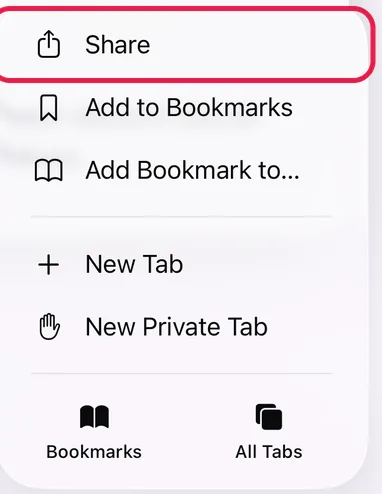
- Tap ⋯ at the bottom right.

- Tap Share.
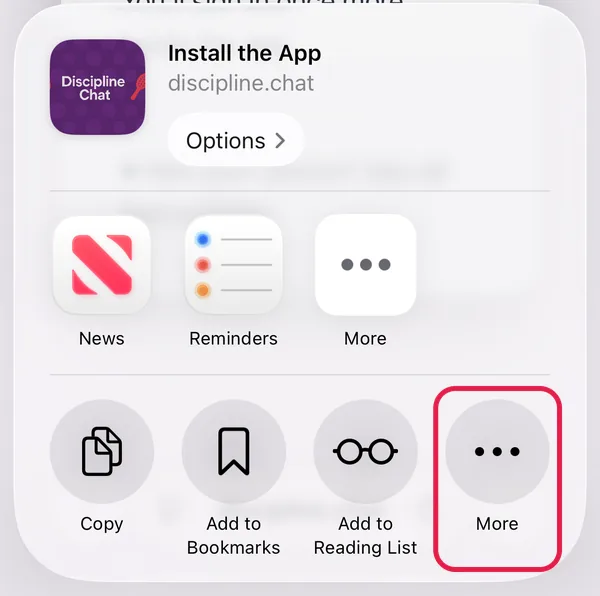
- Tap More.
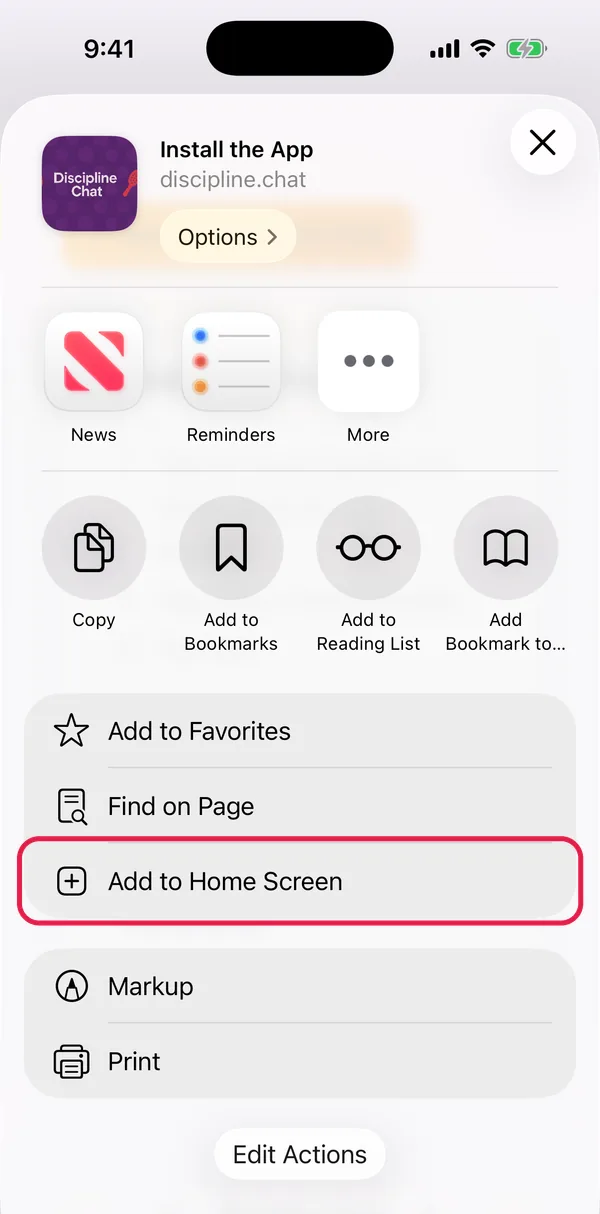
- Tap Add to Home Screen.
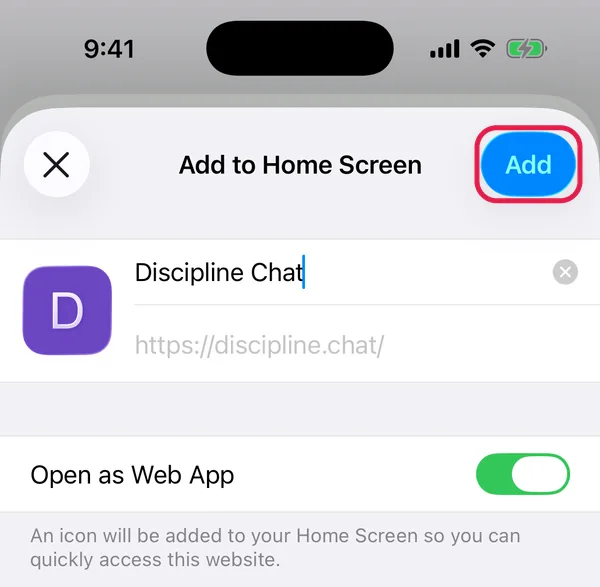
- Leave Open as Web App on and tap Add.
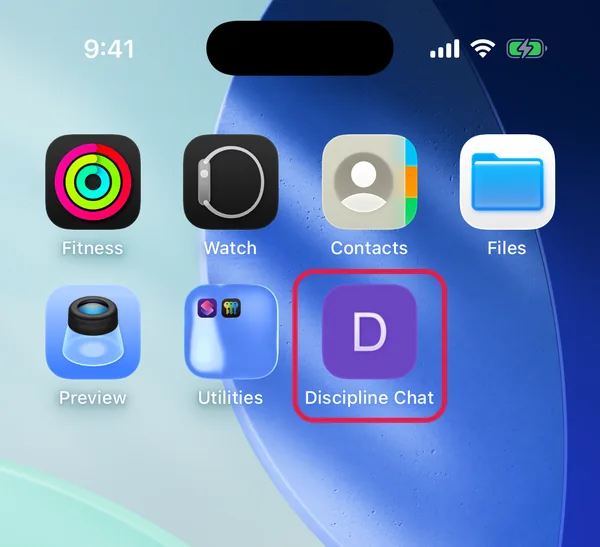
You'll sign in once more inside the app.
- Tap Share at the bottom.
- Tap Add to Home Screen.
- Tap Add.
You'll sign in once more inside the app.
- Tap Share at the right of the address bar.
- Tap Add to Home Screen (scroll down if needed).
- Tap Add.
You'll sign in once more inside the app.
- Tap the menu button at the bottom.
- Tap Share.
- Tap Add to Home Screen.
- Tap Add.
You'll sign in once more inside the app.
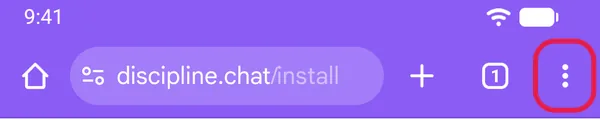
- Tap ⋮ at the top right.
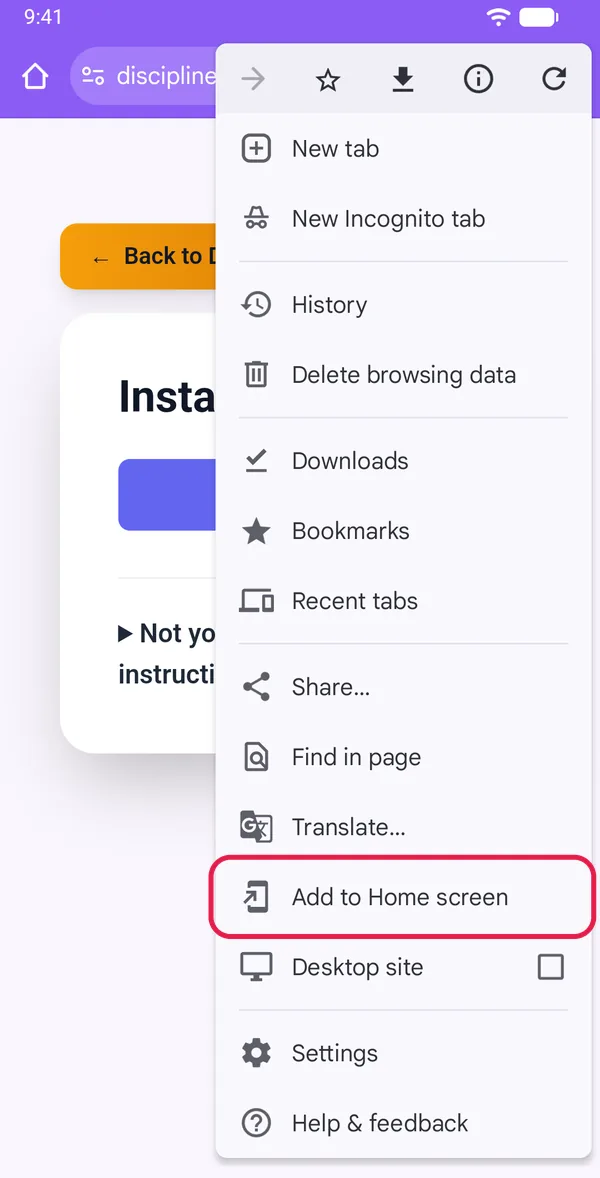
- Tap Add to Home screen.
- Tap Install.
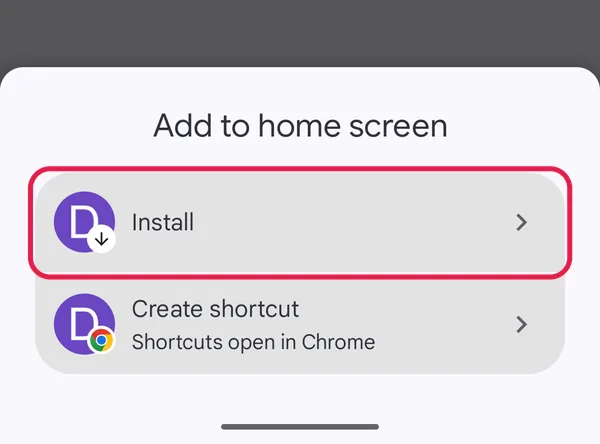
- Tap Install again.

- Tap the menu button at the bottom right.
- Tap Add to phone (it may say Install app).
- Tap Add.
- Tap ☰ at the bottom right.
- Tap Add page to.
- Tap Home screen.
- Tap Add.
- Tap ⋮.
- Tap Add to Home screen (under More if you don't see it).
- Tap Add.
- Tap the menu button at the bottom right.
- Tap 添加至桌面 (Add to desktop).
- Tap ✓.
- Open the browser menu.
- Tap 添加到桌面, 添加至桌面 or 发送到桌面 (Add to home screen).
If no icon appears: allow 桌面快捷方式 (home screen shortcuts) for the browser in your phone's settings.
Or: install Microsoft Edge from your app store.
- Tap ⋯ at the top right.
- Tap Open in Safari (在Safari中打开).
- Follow the iPhone Safari steps.
- Tap ⋯ at the top right.
- Tap Open in Browser (在浏览器打开).
- Follow the steps for your browser.
Option 1: the address bar
- Click the install icon at the right of the address bar.

- Click Install (or Next, then follow the prompts).
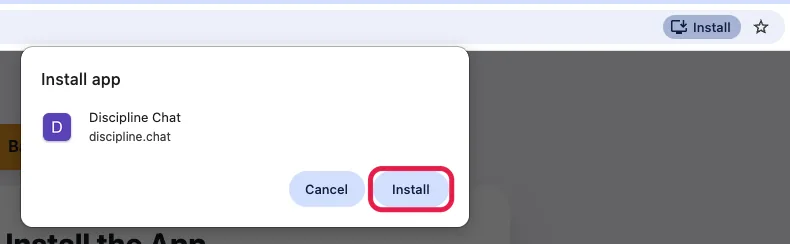
Option 2: the Chrome menu
- Click ⋮ at the top right.
- Click Cast, save, and share.
- Click Install Discipline Chat…
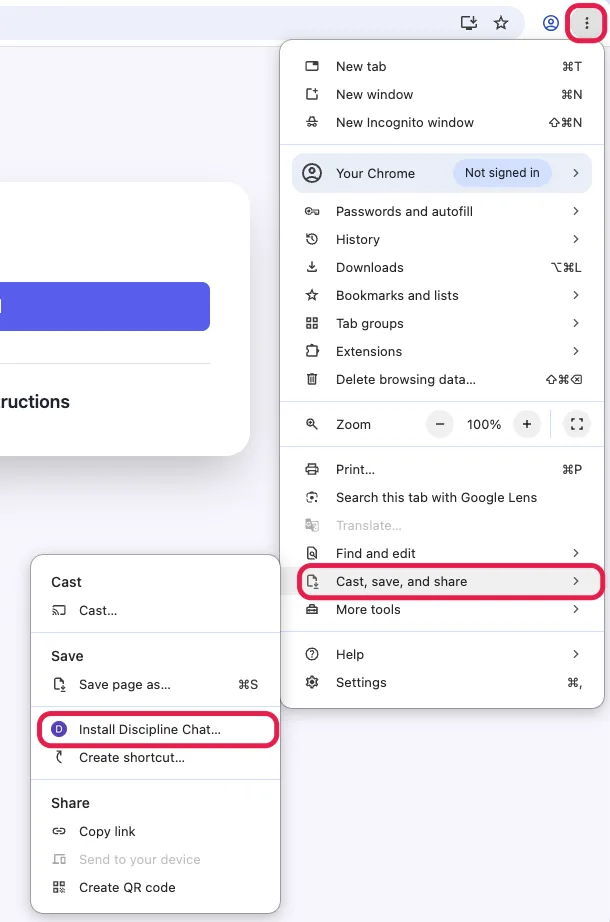
- Click ⋯ at the top right.
- Click Apps, then Install this site as an app.
- Click Install.
- Click File, then Add to Dock.
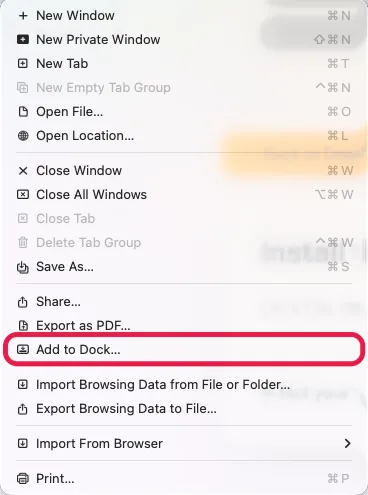
- Click Add.
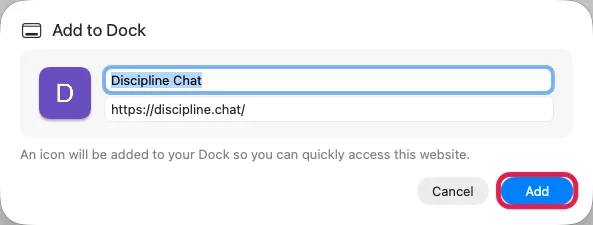
- Click Add tab to taskbar at the right end of the address bar.
- Confirm.
Firefox can't install apps here. Open this page in Chrome, Edge or Safari.
Open your browser's menu and look for Install app or Add to Home screen.
Not your device? See all instructions
iPhone Safari
- Tap ⋯ at the bottom right.
- Tap Share.
- Tap More.
- Tap Add to Home Screen.
- Leave Open as Web App on and tap Add.
You'll sign in once more inside the app.
Older iPhones (iOS 18 and earlier)
- Tap Share at the bottom.
- Tap Add to Home Screen.
- Tap Add.
iPhone Chrome
- Tap Share at the right of the address bar.
- Tap Add to Home Screen (scroll down if needed).
- Tap Add.
You'll sign in once more inside the app.
iPhone Edge
- Tap the menu button at the bottom.
- Tap Share.
- Tap Add to Home Screen.
- Tap Add.
You'll sign in once more inside the app.
Android Chrome
- Tap ⋮ at the top right.
- Tap Add to Home screen.
- Tap Install.
- Tap Install again.
Android Edge
- Tap the menu button at the bottom right.
- Tap Add to phone (it may say Install app).
- Tap Add.
Samsung Internet
- Tap ☰ at the bottom right.
- Tap Add page to.
- Tap Home screen.
- Tap Add.
Firefox on Android
- Tap ⋮.
- Tap Add to Home screen (under More if you don't see it).
- Tap Add.
Huawei Browser
- Tap the menu button at the bottom right.
- Tap 添加至桌面 (Add to desktop).
- Tap ✓.
Xiaomi, OPPO, vivo, Honor, UC, QQ
- Open the browser menu.
- Tap 添加到桌面, 添加至桌面 or 发送到桌面 (Add to home screen).
If no icon appears: allow 桌面快捷方式 (home screen shortcuts) for the browser in your phone's settings.
Or: install Microsoft Edge from your app store.
WeChat and other apps
iPhone
- Tap ⋯ at the top right.
- Tap Open in Safari (在Safari中打开).
- Follow the iPhone Safari steps.
Android
- Tap ⋯ at the top right.
- Tap Open in Browser (在浏览器打开).
- Follow the steps for your browser.
Desktop Chrome
Option 1: the address bar
- Click the install icon at the right of the address bar.
- Click Install (or Next, then follow the prompts).
Option 2: the Chrome menu
- Click ⋮ at the top right.
- Click Cast, save, and share.
- Click Install Discipline Chat…
Desktop Edge
- Click ⋯ at the top right.
- Click Apps, then Install this site as an app.
- Click Install.
Mac Safari
- Click File, then Add to Dock.
- Click Add.
Firefox on Windows
- Click Add tab to taskbar at the right end of the address bar.
- Confirm.
Firefox on Mac/Linux
Firefox can't install apps here. Open this page in Chrome, Edge or Safari.
Other
Open your browser's menu and look for Install app or Add to Home screen.